Studio: your projects in IntelliJ or VS Code style
Studio is the part of Osiris where you work on code. It opens a project right inside Osiris and arranges it the way the IDE you know does — like IntelliJ or like VS Code, down to the tool windows, in Osiris's design. Both environments work on the same files as your real IDE.
Pick the environment once, then your project
The first time, Studio asks how you want to work: like IntelliJ or like VS Code. After that it opens with your projects — the same window for both: search, a new project, open a folder, and the projects you worked on last. Pick one and it opens; the Osiris sidebar folds down to its icons so the code gets the room. Projects at the top (or File → Close Project) takes you back, and Switch environment there changes the arrangement.
In IntelliJ style
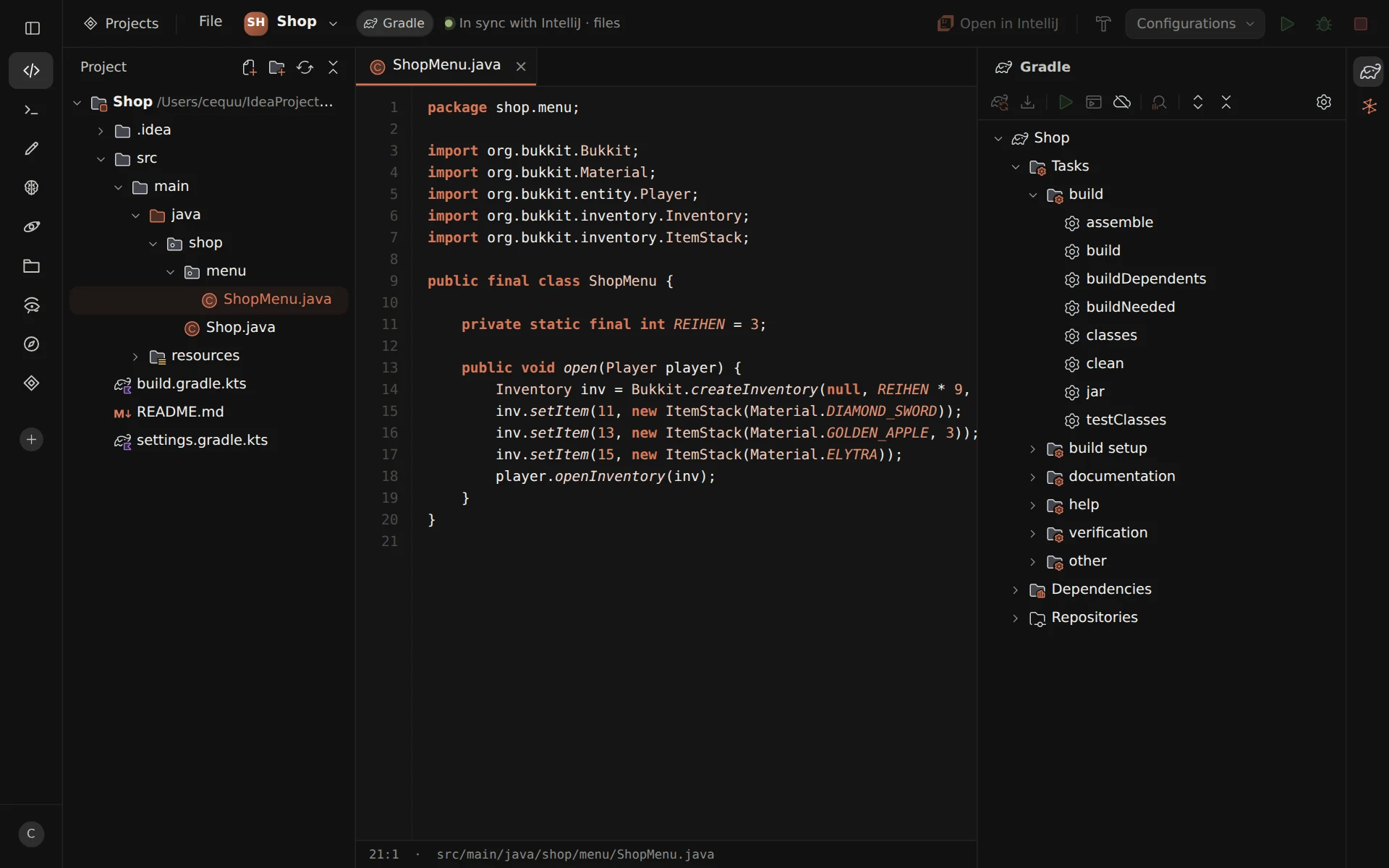
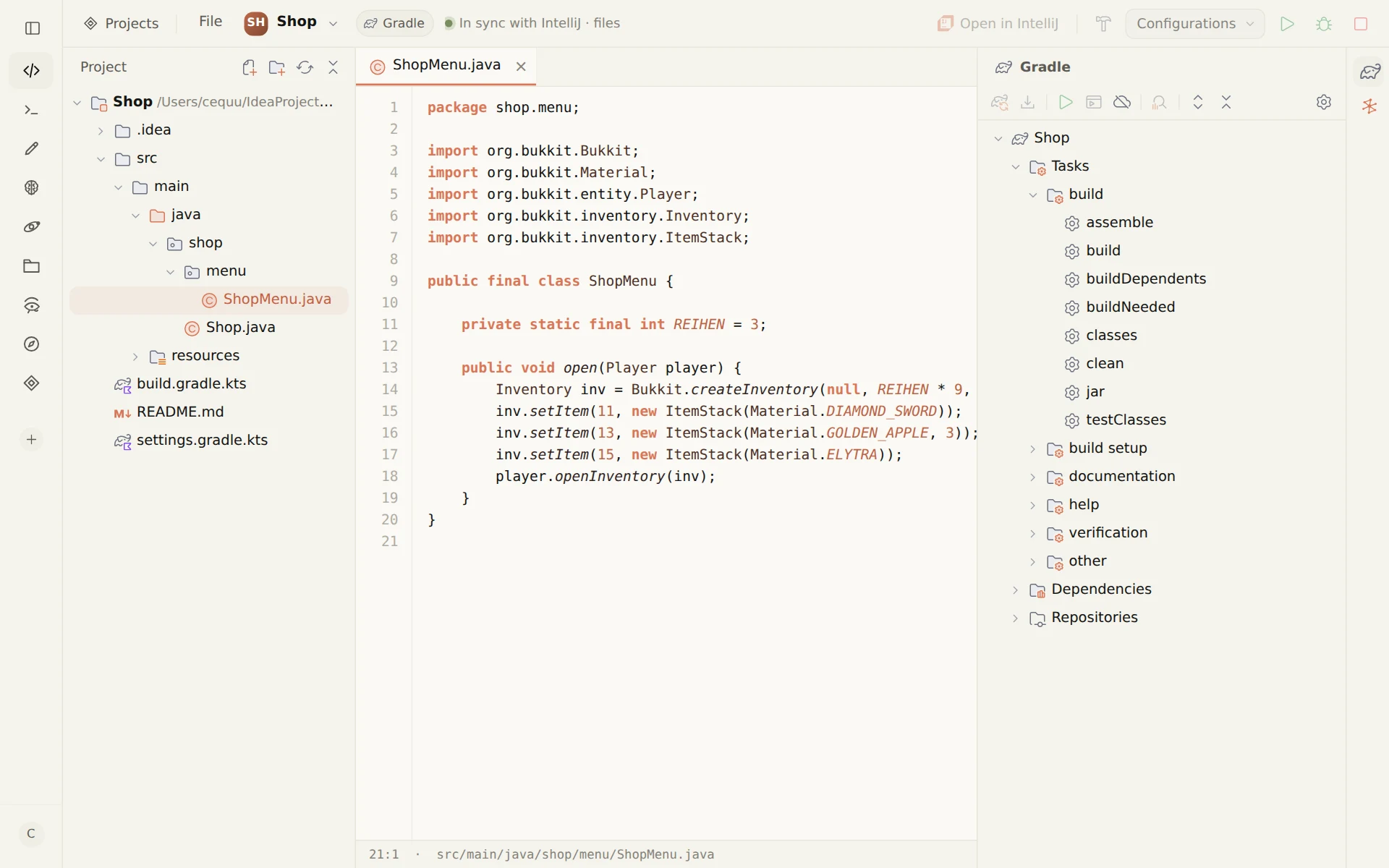
On the left the project tree with IntelliJ's own icons, in the middle the open files with syntax colours, on the right the Maven or Gradle tool window with its tasks, and on the far right a narrow bar with a small chat with Osiris. At the top, as in IntelliJ, build and the run configurations with run, debug and stop.
With the Osiris plugin for IntelliJ the rest comes in live: the open file and the cursor position, unsaved changes and errors. Whatever you run, runs in IntelliJ, with the output shown in Studio.
In VS Code style
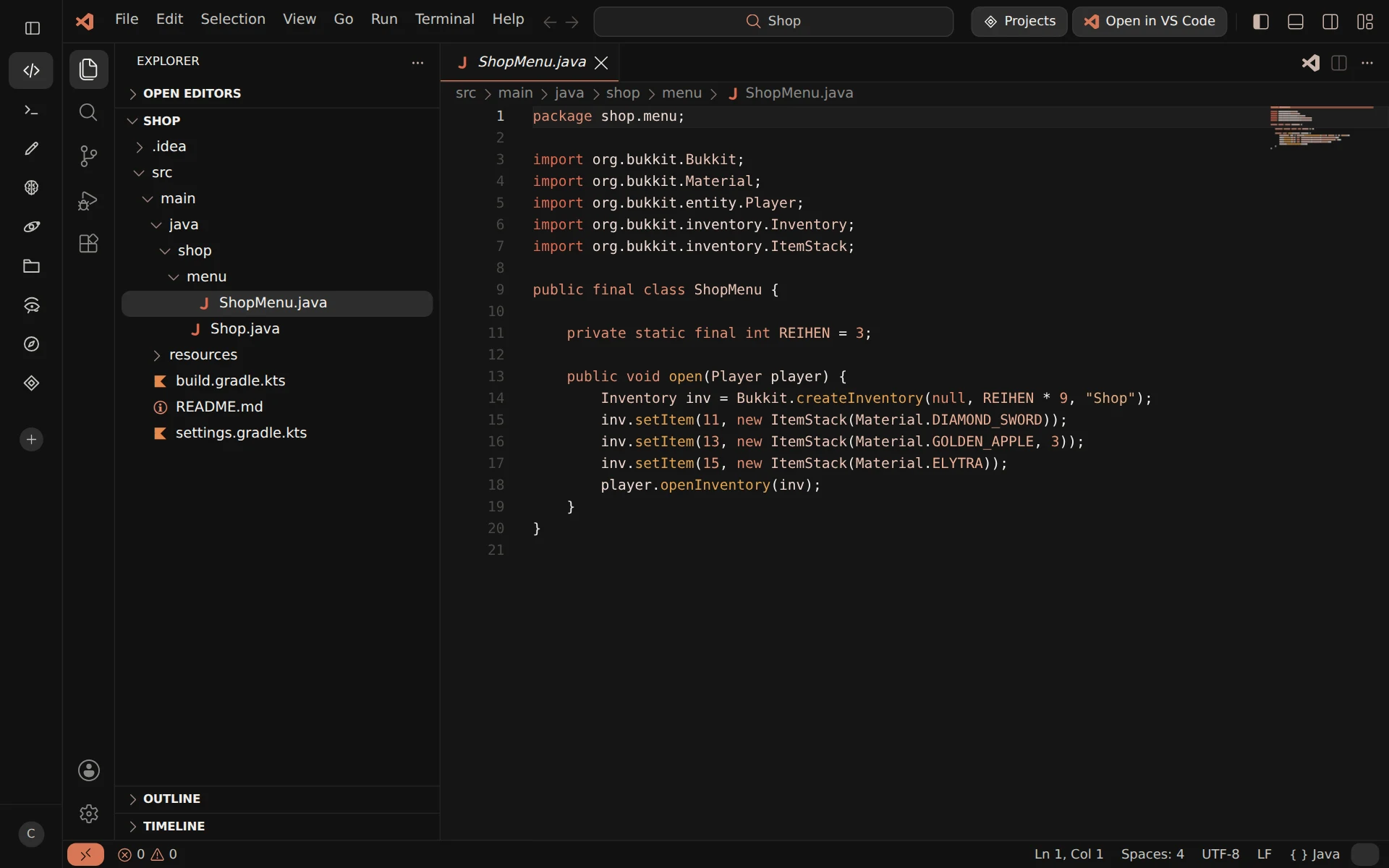
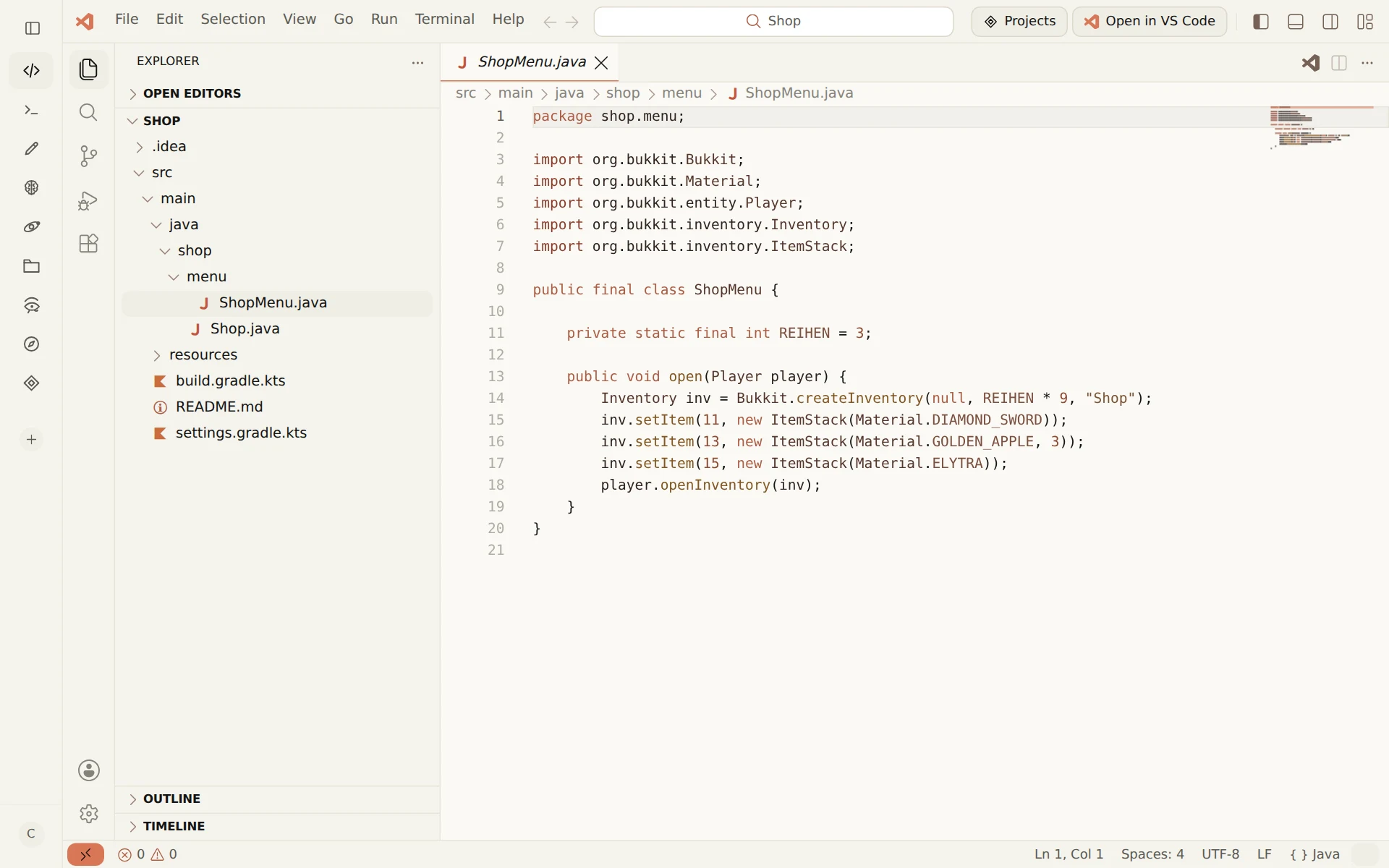
A title bar with menus and the command center, the activity bar with Explorer, Search, Source Control, Run and Debug and Extensions, tabs with breadcrumbs, the panel with Problems, Output, Debug Console, Terminal and Ports, and the status bar with line, column, encoding and line ending. The chat with Osiris sits in the secondary side bar. The layout is VS Code's; colours, icons and controls are Osiris's — in light and dark.
What cannot exist in Osiris — a debugger, extensions, several windows — is shown greyed out, the way VS Code shows it without the matching extension. The Terminal tab opens the Osiris terminal or your system's terminal in the project folder.
The same files, in both directions
Studio keeps no copy of its own. What you save in Studio lands on disk and your IDE loads it; what the IDE saves, Studio picks up. The project tree and open files follow changes from outside. Studio remembers the environment and the open project: after a restart — and in another browser — you land where you left off.
Claude right next to the code
Studio is part of an AI development environment with a memory: the chat next to the code draws on the rules and notes in the brain of the connected project. The built-in editor and terminal are one click away.
IntelliJ is a trademark of JetBrains s.r.o., Visual Studio Code a trademark of Microsoft Corporation. Studio is modelled on their interfaces; Osiris is an independent product and not affiliated with either of them.