Minecraft plugins with Claude in Osiris Studio
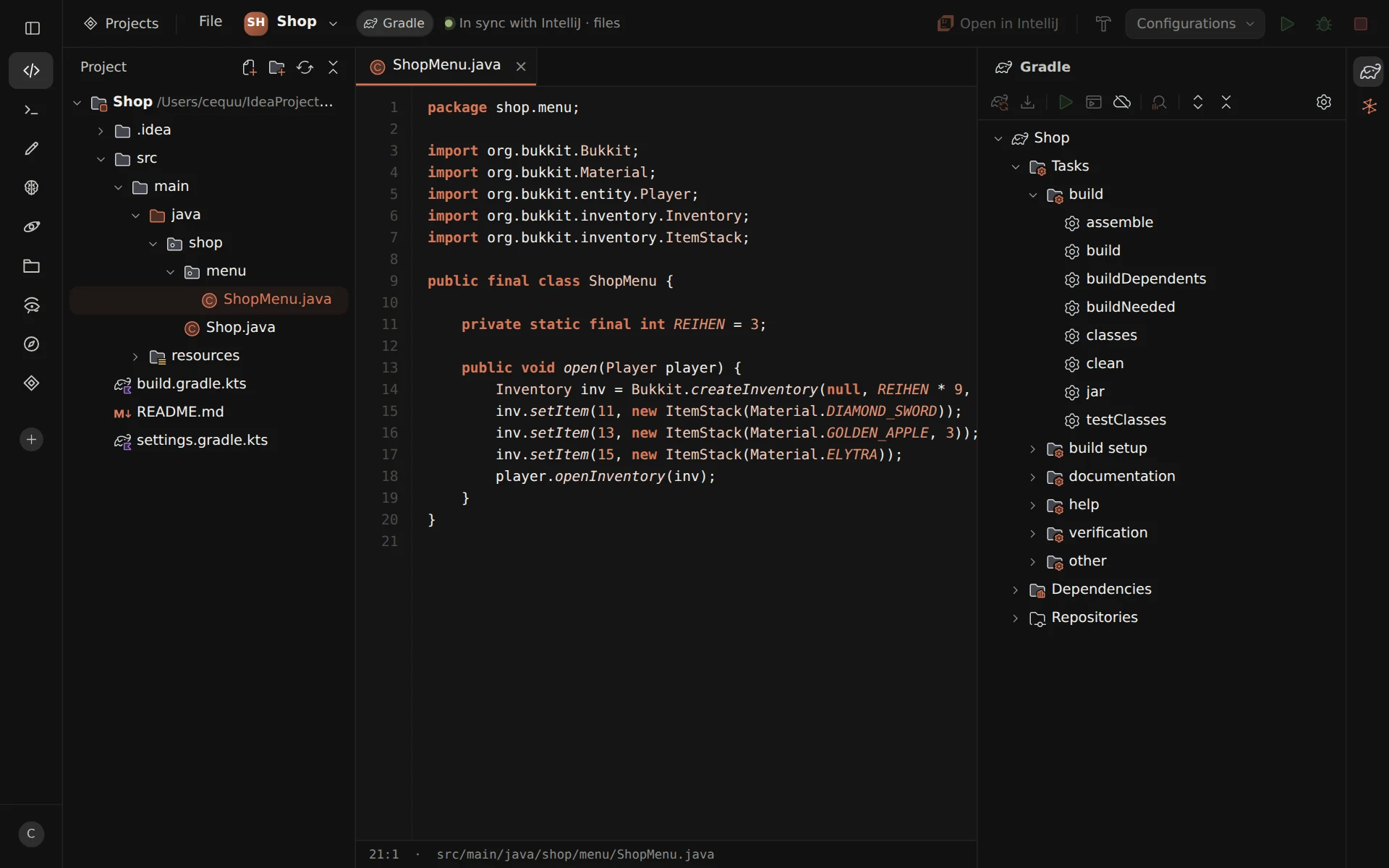
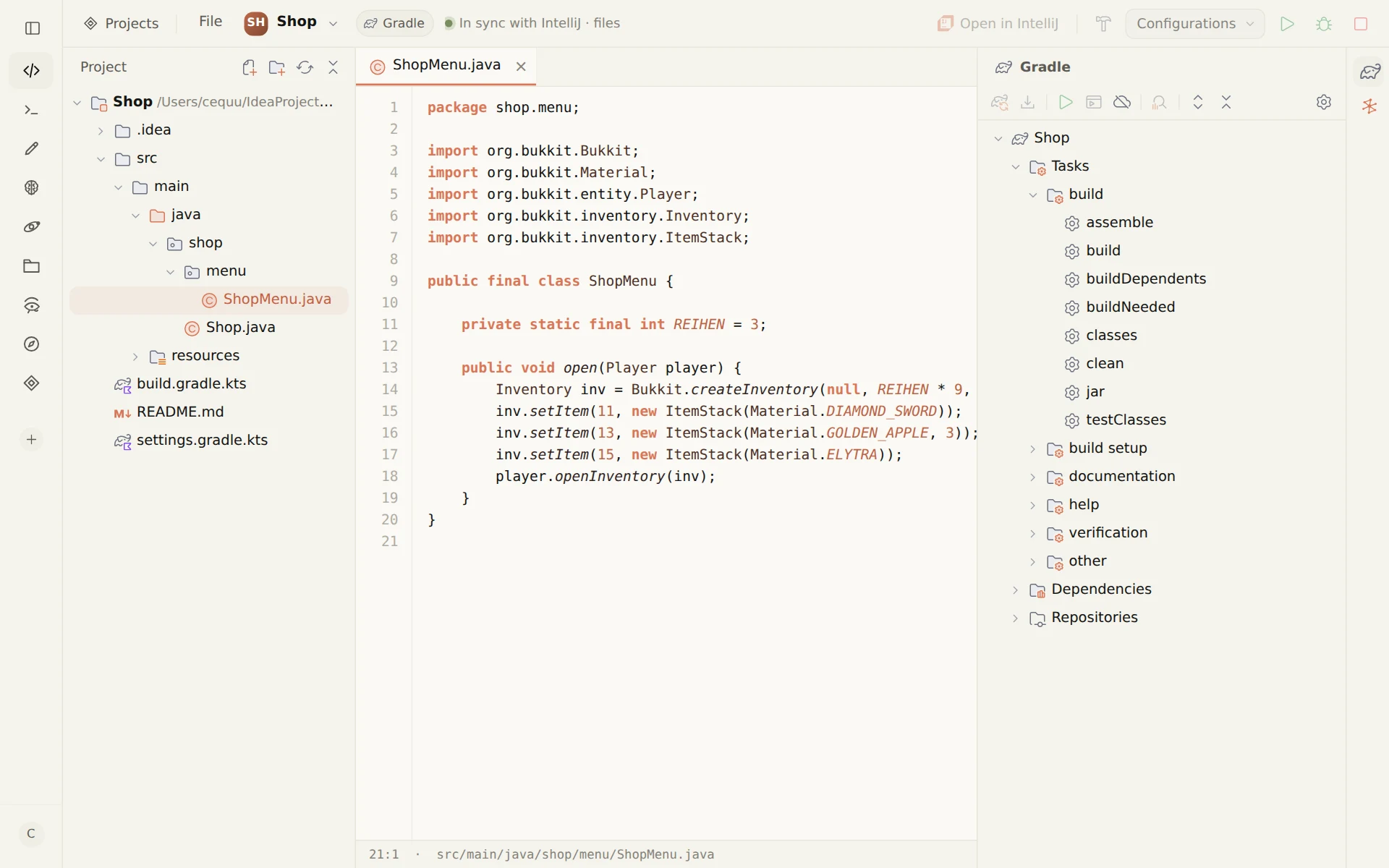
Create a plugin project, let Claude write the code, build it and drag the finished jar into your server's plugins folder — all in one app. Osiris Studio sets up Paper, Spigot, Bukkit, Folia, Purpur, Velocity and BungeeCord projects with Maven or Gradle and picks the Java version that fits your Minecraft version. You see and edit every Java file Claude writes. Studio is in beta.
What you need
- Osiris with the Studio ability. Studio opens your projects in the style of IntelliJ or VS Code — more about it on the Studio page.
- Your own access to Claude. Claude Code, signed in with a Claude plan or an API key. Anthropic bills that usage directly; Osiris adds no mark-up to it.
- A JDK. Osiris looks for one itself: in JAVA_HOME, the package folders, the JDKs IntelliJ downloaded, SDKMAN, Gradle, Homebrew and, on Windows, the vendor folders under %ProgramFiles%. A JRE without javac does not count — nothing builds with it.
- IntelliJ IDEA, if you like. It is optional: Studio builds without it. With IntelliJ and the Osiris plugin you also get a real debugger.
New Project → Minecraft
New project in Studio is built like the window of the same name in IntelliJ. Under Generators you pick Minecraft, then the platform:
- Paper, Spigot, Bukkit, Folia or Purpur — a server plugin with a
plugin.ymland a main class that extendsJavaPlugin. A Folia project is marked as Folia-supported, so the server loads it. - Velocity — a proxy plugin that describes itself with the
@Pluginannotation instead of a file. - BungeeCord — a proxy plugin with a
bungee.yml.
Next to each version the list shows the Java it needs, and the JDK field preselects a matching one.
The plugin is written in Java and built with Maven or Gradle (with a build.gradle.kts).
The wrapper comes with it — mvnw or gradlew — so the project builds even
without Maven or Gradle installed, and so do the settings IntelliJ needs to recognise it as a Maven or
Gradle project when you open it.
Or fill in a form: the Minecraft ability
The same scaffold also comes from a form. In Osiris this ability is called Minecraft Development — not to be confused with the IntelliJ plugin of the same name by another developer, which has nothing to do with Osiris. You fill in:
- Plugin name, main class, group ID and artifact ID — package name, command and permission are derived from the plugin name.
- Server software — Paper, Folia, Spigot or Purpur.
- Minecraft version — 1.21.4 by default. From 1.20.5 on, Osiris builds for Java 21, before that for Java 17.
- Build tool and language — Maven or Gradle, Java or Kotlin.
- Where it opens — in IntelliJ IDEA or Visual Studio Code, or not at all.
The last field asks what the plugin should be able to do. That description then goes to Claude as a task — the more precise, the better.
Claude writes along
On the right of Studio sits an AI chat that knows which project is open. Ask Claude for a new command in your Paper or Spigot plugin, an event listener or a config file, and Claude writes the changes into the project. The project tree and the open files follow every change live — new classes show up as soon as they are written.
What should hold for every plugin — the Java version, how packages are named, where messages live — you write down once in the Ultrabrain. Claude reads it in every chat, so you do not have to repeat it. How this works is described under Claude Code with memory.
Build without extra tools
Building in Studio means building up to the jar — package with Maven, build
with Gradle. Osiris starts Maven and Gradle itself: first the wrapper in the project, then whatever is
on your PATH, and for Maven finally the copy that ships with IntelliJ. If JAVA_HOME is not set, Osiris
uses a JDK it has found. The output appears at the bottom of Studio.
With IntelliJ and the Osiris plugin for IntelliJ, goals and run
configurations run in IntelliJ instead — debugging included. Without the plugin, debugging in Studio
means the same run with detailed output (-X -e for Maven, --info --stacktrace
for Gradle), not a debugger. And if your hands are busy, Jarvis, the voice
assistant, starts the build for you.
The JAR field
Bottom left in Studio sits the JAR field. It shows the newest jar from target/ (Maven) or
build/libs (Gradle); source and javadoc jars and the original- copy left by
the Shade plugin do not count. From there you take it with you:
- Clipboard — the jar goes to the clipboard as a real file, as if copied in your file manager; pasting it into the next program is all it takes. On Windows, and on Linux in Nautilus or Dolphin, it moves like a cut file, so no second copy stays behind in the build folder.
- Drag it out — straight into a folder, for example the plugins folder of your test server. Once it has fully arrived, it leaves the build folder.
- Delete — one click, so the next build puts down a fresh one.
Try it on your test server
Put the jar into the plugins/ folder of your own test server and restart the server. The
server has to run on a Java version that fits its Minecraft version — from 1.20.5 on, that is Java 21.
This step is the usual way to install a plugin, not a feature of Osiris.
Minecraft is a trademark of Mojang Studios. Paper, Spigot, Bukkit, Folia, Purpur, Velocity and BungeeCord belong to their respective projects; IntelliJ IDEA is a trademark of JetBrains s.r.o., Visual Studio Code a trademark of Microsoft Corporation. Osiris is an independent product and is not affiliated with Mojang Studios, Microsoft, JetBrains or the projects named above.